
Setting up Pipedrive the right way in 2026 can transform how your sales team works, follows up, and closes deals. With rising competition and AI-powered CRMs becoming the new standard, companies that properly configure their Pipedrive system see 30-45% more qualified pipeline and up to 21% higher close rates, according to industry research.
But most businesses still make one mistake:
They create an account → add deals → and assume the CRM will “work itself.”
This leads to messy pipelines, missed follow-ups, bad data, and frustrated sales teams.
If you want Pipedrive to actually accelerate sales, improve deal visibility, and automate repetitive work, proper setup is non-negotiable.
This guide shows you exactly how to set up Pipedrive in 2026, step-by-step following the newest updates, AI features, automation tools, lead routing capabilities, CRM best practices, and expert recommendations from our team at Axis Consulting.
Why Proper Pipedrive Setup Matters
Before jumping into the steps, here’s why setup matters more than ever:
🚀 86% of sales reps say automation helps them hit quota faster
📊 Companies with structured pipelines experience 28% higher revenue growth
⏱ AI-driven deal scoring reduces manual admin time by 35–40%
🔔 Automated follow-ups increase meetings booked by 62%
✔ Clean CRM data improves forecasting accuracy by up to 50%
In simple terms:
A properly set up Pipedrive system gives you speed, predictability, and clarity the three things modern sales teams can’t survive without.
Step-by-Step: How to Set Up Pipedrive in 2026
Step 1: Create Your Pipedrive Account and Configure Company Settings
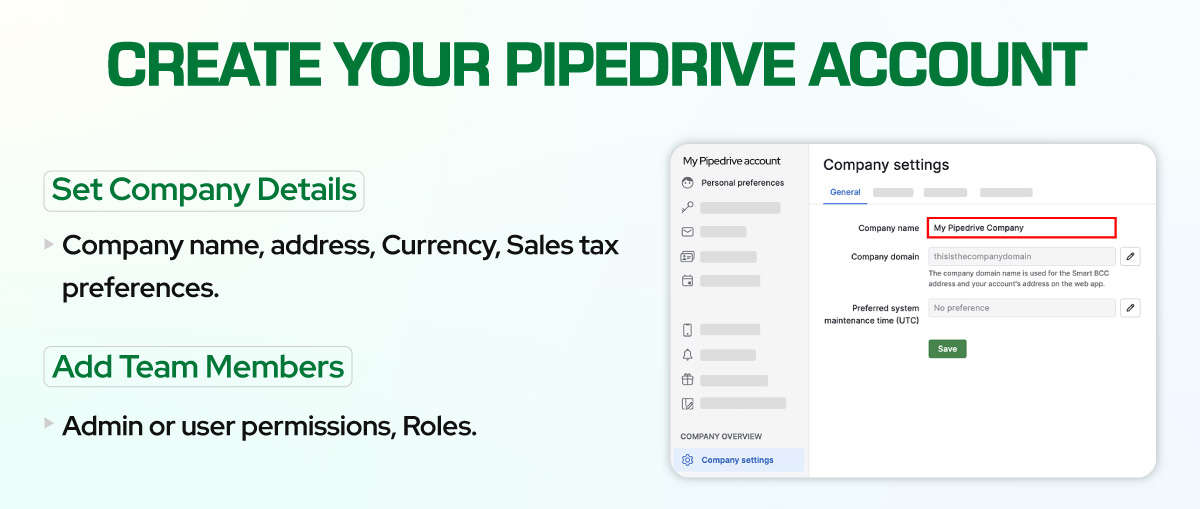
Once you create your Pipedrive account, the first step is setting the foundation:
1.1. Set Your Company Details
- Company name
- Time zone
- Currency
- Fiscal year
- Sales tax preferences
Tip: Keep your fiscal year accurate- it affects your reports and revenue forecasting.
1.2. Add Your Team Members
Assign:
- Roles
- Admin or user permissions
- Access levels (Visibility Groups)
Best Practice:
Start with restricted visibility rules. Expand later when needed. This prevents data leaks and unauthorized changes.
Step 2: Configure Your Pipeline Stages Properly


Pipedrive works best when your pipeline accurately reflects your real-life sales process.
Your pipeline must include stages that reflect:
- Lead qualification
- Discovery
- Proposal
- Negotiation
- Final decision
Example Pipeline:
- New Lead
- Contacted
- Discovery Call Scheduled
- Qualified
- Proposal Sent
- Negotiation
- Closed Won / Lost
Why this matters:
Research shows that companies using clear stage definitions and stage-specific actions improve efficiency by 32%.
Step 3: Customize Deal Fields, Person Fields, and Organization Fields
Your CRM becomes powerful when it captures the right data, not more data.
Add custom fields such as:
- Lead source
- Budget
- Industry type
- Decision-maker role
- Deal priority
- Timeline to close
- Qualification score
Step 4: Integrate Your Email and Calendar


This is one of the most important steps.
Why integrate email with Pipedrive?
- Automatic email tracking
- Linked email threads on deals
- One-click meeting scheduling
- AI follow-up suggestions
- Visibility into rep communication history
Supports:
- Gmail
- Outlook
- Microsoft Exchange
- Custom IMAP
Mistake to Avoid:
Do NOT use multiple email accounts under one user. This confuses email syncing and visibility.
Step 5: Set Up Lead Inbox, Chatbot, and Web Forms
Pipedrive now provides a complete lead capture system.
Tools to configure:
- Lead Inbox – central place for incoming leads
- Smart Chatbot – 24/7 automated website lead capture
- Web Forms – embed on website pages
- Prospector – AI tool to find verified B2B leads
Optimized Lead Routing Tip:
Assign leads automatically based on:
- Location
- Pipeline
- Industry
- Qualification score
Businesses using automated routing see 19% faster first-response times.
Step 6: Add Your Products and Pricing
If you sell products or service packages, add them here.
- Faster quoting
- More accurate forecasting
- Better sales insights
- Clean data for revenue reports
Use Product Variants if you sell tiered or package-based services.
Step 7: Enable Pipedrive Automations (Workflow Automations)
This is where the real power of Pipedrive starts.
Examples of Automations:
- When a deal is created → assign to a rep
- When a deal moves to “Qualified” → create a task
- 24-hour no activity → send automated follow-up
- When proposal sent → notify manager
- Deal marked lost → trigger feedback form
- New lead captured → email + SMS instantly
Automated follow-up workflows can increase conversion rates by 30–50% depending on the industry.
Step 8: Connect Marketing Tools (Mailchimp, ActiveCampaign, Klaviyo)


Pipedrive’s marketing integrations help you nurture leads automatically.
Best Tools to Connect:
- Mailchimp – newsletters + automation
- ActiveCampaign – advanced automations
- Klaviyo – eCommerce flows
- Outfunnel – syncing marketing automation tools
- Zapier / Make – custom workflows
| Platform | Purpose |
| Mailchimp | Email campaigns & segmentation |
| ActiveCampaign | Deep automation workflows |
| Klaviyo | E-commerce nurturing flows |
| Outfunnel | Syncs email engagement with Pipedrive |
Step 9: Configure AI Features
Pipedrive has rolled out new AI-driven features that dramatically improve performance:
- AI Deal Scoring – predicts win probability
- AI Follow-Up Suggestions – smart reminders
- AI Email Assistant – drafts sales emails
- AI Insights – detects bottlenecks in your pipeline
- AI Forecast Reports – predicts monthly revenue
Companies using AI in Pipedrive report:
📈 44% faster deal progression
📉 25% fewer stalled deals
Step 10: Set Up Dashboards and Reporting


Reports help you monitor:
- Team performance
- Conversion rates
- Sales cycle length
- Lost reasons
- Activity tracking
- Revenue forecasting
Essential Dashboards:
- Sales Activities Dashboard
- Lead Sources Dashboard
- Pipeline Performance Dashboard
- Forecasting Dashboard
Pro Tip:
Enable automatic weekly reports to your inbox.
Step 11: Set Up Integrations (VoIP, Billing, Meetings)
Must-Have Integrations:
- Aircall or JustCall (phone systems)
- Calendly (meeting scheduling)
- Stripe (payment links)
- PandaDoc (proposals & contracts)
- Slack (notifications)
Why Integrations Matter:
Teams that integrate phones + scheduling + quoting into Pipedrive see 60–70% fewer admin hours per week.
Common Mistakes to Avoid When Setting Up Pipedrive
❌ Too many pipeline stages
❌ No automation
❌ No custom fields
❌ No email/calendar integration
❌ No defined qualification system
❌ Reps manually entering everything
❌ Not using AI scoring
❌ No lead routing rules
❌ No reporting dashboard
Fix these, and your CRM becomes fast, predictable, and scalable.
When Should You Hire a Pipedrive Expert?
If your team:
- Has 4+ sales reps
- Uses multiple tools
- Has unstructured follow-ups
- Has duplicate data
- Has an unclear pipeline
- Needs advanced automation
- Needs reporting clarity
Want Pipedrive Set Up by Certified Experts?
If you want your Pipedrive CRM implemented perfectly from day one, our team at Axis Consulting can configure:
✓ Pipeline setup
✓ Lead routing
✓ Automations
✓ Integrations (Aircall, PandaDoc, Calendly, Stripe)
✓ Data migration
✓ Qualification systems
✓ AI deal scoring
✓ Reporting dashboards
With our experience helping companies across industries, we ensure your CRM drives predictable revenue, not extra admin work.
👉 Learn more here:
https://axisconsulting.io/services/pipedrive/
👉 Book your free CRM audit and roadmap session.
Frequently Asked Questions (FAQ)
1. Is Pipedrive easy to set up for beginners?
Yes. Pipedrive is one of the most user-friendly CRMs. However, beginners often misconfigure pipelines, automations, and fields. A proper setup ensures accuracy, speed, and predictable sales processes.
2. How long does it take to fully set up Pipedrive?
A basic setup takes 1–2 hours, but a complete implementation with automation, integrations, custom fields, and reporting usually takes 1–3 days, depending on team size.
3. What are the most important parts of Pipedrive setup in 2026?
The most critical areas include:
- Clean pipeline structure
- Email/calendar sync
- Workflow automations
- Lead routing
- Custom fields
- AI deal scoring
- Reporting dashboard
4. Can Pipedrive automate follow-ups?
Yes. Pipedrive automatically sends reminders, assigns tasks, triggers emails, and updates deals based on your rules. Businesses using automation see 30–50% higher conversion from leads to meetings.
5. Does Pipedrive integrate with marketing tools?
Absolutely. Pipedrive integrates with Mailchimp, ActiveCampaign, Klaviyo, Outfunnel, Zapier, Make, and more. It also integrates with calling tools, payment processors, and contract generators.